x264
Codec Capabilities Analysis
Parameters Comparison
Download as PDF
August 2006
Contents. 2
Overview.. 3
Purpose. 3
Codec. 3
Sequences. 3
Methodology. 4
Averaging Methods and Explanation of
Charts. 4
Metrics Used in Comparison. 6
Presets. 7
Presets Measurements Results. 12
Simple Presets Analysis. 22
Complex Presets Analysis. 26
Conclusions. 29
Appendix: Sequences Description. 31
Foreman. 31
Susi 32
BBC. 33
Battle. 34
Simpsons. 35
Matrix. 36
Mobile. 37
List of Figures. 38
© YUVsoft Corp., 2006-2007
This electronic document should be referenced as:
YUVsoft Corp. x264 Codec Capabilities Analysis / Parameters Comparison.
2006. www.yuvsoft.com/
technologies/pdf/x264_parameters_comparison.pdf
The goal of this document is to show
typical codec’s analysis to support future tuning. x264 codec implementing
H.264 standard was chosen as an example. Strong and weak spots of x264 in terms
of encoding speed and video quality are found and recommendations on use of
codec’s presets are given. This document may be of interest to companies
analyzing usefulness of tuning/elaboration of their own codecs and also for
users of x264 codec. More about YUVsoft’s services on developing, tuning and
testing videocodecs and other R&D services and opportunities may be found
at www.yuvsoft.com/technologies/codecs_testing/index.html.
We have chosen x264 as a demo codec
because of few reasons. x264 has a lot of parameters for precise tuning, and
many features of H.264 standard are implemented in it. Open sources of the
codec allow a more detailed analysis of obtained testing results. Another
reason is codec’s quality – according to H.264 comparisons, x264 is one of the best H.264 codecs for
the present time.
We used a codec compiled from sources
labeled as “x264-snapshot-20060406-2245”. The reference codec JM 9.8 was used
for decoding.
|
Sequence
|
Number of frames
|
Frames per second
|
Resolution and color space
|
|
1. foreman
|
300
|
30
|
352x288(YV12)
|
|
2. susi
|
374
|
25
|
704x576(YV12)
|
|
3. bbc
|
374
|
25
|
704x576(YV12)
|
|
4. battle
|
1599
|
24
|
704x288(YV12)
|
|
5. simpsons
|
365
|
24
|
720x480(YV12)
|
|
6. matrix
|
239
|
25
|
720x416(YV12)
|
|
7. mobile
|
372
|
25
|
704x576(YV12)
|
Our test set includes mainly movies and
standard sequences from different sources with different types of motion. A
more detailed description of all used sequences can be found in Appendix:
Sequences Description.
One of the most important characteristics
of a codec is quality of encoded video. Besides problems regarding how to
measure “video quality”, there are difficulties in comparing different codecs
or modes of functioning of a certain codec since it is non-trivial to represent
quality by a single value. Some reasonable assumptions and well-grounded
aggregation methods are necessary to perform such a comparison. The following
approach was used.
First of all, we run all chosen presets
of x264 for all test sequences at 10 different bitrates: 100, 225, 340, 460,
700, 938, 1140, 1340, 1840 and 2340 Kbps. Encoded sequences were compared with
corresponding originals using objective metrics such as PSNR, SSIM, etc. It
made us able to create and operate with Bitrate/Quality charts or
Rate-Distortion curves of the codec. These data are necessary to correctly
compare different modes (presets) of the codec, or, as it also might be the
case, to correctly compare different codecs. We used the notion of “relative
bitrate” meaning what bitrate in percents should be to achieve the same quality
(by, for example, PSNR criterion) as for some reference preset whose bitrate is
taken for 100%.
The first step to get relative bitrate of
two presets (codecs) is “rotating” of Rate-Distortion (RD) charts, changing
axis of the charts (Figure 1, Figure 2). It allows us to calculate ratio of bitrates for the same quality. The advantage of bitrates ratio for the same quality instead of, for example, PSNR difference for the same bitrate, is that bitrates ratio does not
generally depend on an objective quality metric being used.
After that it is necessary to choose
interval of averaging. We used an internal area of RD curves where missed
bitrate values can be interpolates between the nearest values (see Figure 2). It means that we did not use extrapolation because of big possible mistakes of RD curves extrapolation. Linear interpolation was used to get values between the existing points. Previous experiments convinced us that
more complex interpolation methods usually give very little for better
accuracy.
To get average values we calculated sizes
of areas under the curves and divided one by the other (see Figure 3).
To get relative encoding time for two
presets, we calculated relative time for each sequence and use arithmetic mean
to average those values. For each sequences we divided total encoding time for
each preset (time to encode sequence with 10 bitrates) by encoding time of a
chosen reference preset.
This method allows us to take into
account small sequences with the same weight as long sequences.
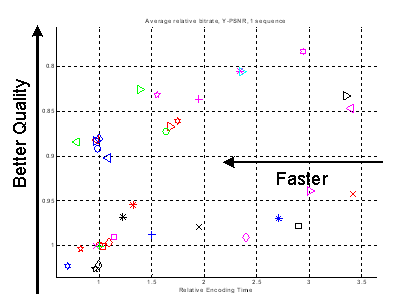
Average Relative Bitrate graphs, which
are often used in this document, are a visualization of relative speed and
relative bitrate (for the same quality) for all presets. A certain default
preset was selected as a reference; it is always placed in point (1, 1) on
these figures. For each preset relative time and relative bitrate were
calculated against the reference and placed on the charts as shown on Figure 4.
|
|
|
Figure 4. Speed (Encoding Time)/Quality chart example
|
During
testing the following metrics were calculated:
·
PSNR (Y component)
·
SSIM (Y component)
·
Blocking (Y component)
Information of these metrics can be found
here:
http://www.compression.ru/video/quality_measure/info_en.html
All types of analysis in this document
were made using Y-PSNR metric. Relative bitrates were calculated using this
classic metric, as described in section “Averaging Methods and Explanation of
Charts”.
We have chosen many different presets
(codec parameters combinations) in order to try to select optimal presets in
terms of speed and objective video quality.
Since we can’t test presets on all
sequences available all over the world, so we compared presets on test
sequences that were enumerated above. This test set is deemed to be
representative for common applications.
The chosen presets are described in the
following table. It might be convenient to print this table for a more
convenient study of subsequent charts.
|
|
|
Preset
|
Comments
|
|
1.
|

|
default
|
All parameters are set to their
default values and the command line looks like:
x264 ‑‑no-psnr ‑‑bitrate=<target_bitrate>
‑‑fps=<fps>
-o <output> <input> <width>x<height>
Other presets add additional
parameters to this command line.
|
|
2.
|

|
-t
1
|
We want to see how trellis works
in terms of speed/quality tradeoff.
Trellis is a deletion of nonzero
coefficients after DCT and quantization if it is among a group of zero
coefficients.
For example, if we have sequence
00001000 of quantized DCT coefficients, after trellis RDO optimization the
only “one” can be zeroed.
|
|
3.
|

|
-t
2
|
|
4.
|

|
‑‑nr
5
|
Switches noise reduction on.
|
|
5.
|

|
‑‑no-fast-pskip
|
Disable early skip detection on
P-frames.
|
|
6.
|

|
‑‑subme
1
|
Different modes of block
partitioning and sub-pixel motion estimation.
“‑‑subme 7” turns on
optimal sub-block partitioning by encoding all partitions and choosing
between them, so it works very long, but it can give quality comparable with
multi-pass algorithms.
|
|
7.
|

|
‑‑subme
3
|
|
8.
|

|
‑‑subme
6
|
|
9.
|

|
‑‑subme
7
|
|
10.
|

|
‑‑me
dia
|
Different motion estimation modes.
|
|
11.
|

|
‑‑me
umh
|
|
12.
|

|
‑‑me
esa
|
|
13.
|

|
‑‑subme
6 ‑‑b-rdo ‑b 3
|
RD-based mode decision for
B-frames. We need to turn on subme=6 in order to make it works.
|
|
14.
|

|
‑‑no-chroma-me
|
Use only luma in motion
estimation. It can improve speed, but if an image contains regions that have
the same luma component, but different colors (“Mobile” sequence has such regions), motion
estimation will fail.
|
|
15.
|

|
‑‑weightb
-b 3
|
|
|
16.
|

|
-b
3 ‑‑b-bias 5 ‑‑b-pyramid
‑‑weightb ‑‑b-rdo ‑‑subme 6 ‑‑bime
|
|
|
17.
|

|
‑‑direct
none
|
Several motion vector prediction
modes.
|
|
18.
|

|
‑‑direct
spatial
|
|
19.
|

|
‑‑direct
temporal
|
|
20.
|

|
‑‑direct
auto
|
|
21.
|

|
‑‑analyse=none
|
Different modes of MB
partitioning.
|
|
22.
|

|
‑‑analyse=all
-8
|
|
23.
|

|
‑‑pass
1
‑‑pass 2
|
Multipass algorithms. They give
better quality, but work two and three times slower, respectively.
|
|
24.
|

|
‑‑pass
1
‑‑pass 3
‑‑pass 2
|
|
25.
|

|
‑‑ratetol
0.1
|
Test how quality and speed would
change, if the codec has to keep target bitrate more precisely.
|
|
26.
|

|
‑‑nf
|
Disable loop filter (turn off
deblocking).
|
|
27.
|

|
‑‑no-cabac
|
Use CAVLC (variable length codes)
instead of CABAC (arithmetic compression).
|
|
28.
|

|
‑‑ref
10
|
Use greater number of reference
frames. Can significantly improve motion compensation accuracy.
|
|
29.
|

|
‑‑scenecut
10
|
Insert extra I-frames more
aggressively.
|
|
30.
|

|
‑‑me=umh
‑‑merange=32
‑‑subme=6 ‑‑ref=16
‑‑analyse=all
‑‑direct=spatial
‑‑pbratio=1.5 ‑‑bframes=3
‑‑weightb
‑‑pass=1
‑‑me=umh
‑‑merange=32
‑‑subme=6 ‑‑ref=16 ‑‑analyse=all< br>
‑‑direct=spatial ‑‑pbratio=1.5
‑‑bframes=3 ‑‑weightb ‑‑pass=2
|
Encode with the best possible
quality available.
|
|
31.
|

|
‑‑me=dia
‑‑merange=16 ‑‑subme=1
‑‑analyse=none ‑‑direct=spatial
‑‑pbratio=1.5 ‑‑bframes=1
|
Here we take the previous preset ( ) and
decrease parameter values in order to reach good quality with better speed. ) and
decrease parameter values in order to reach good quality with better speed.
|
|
32.
|

|
‑‑no-b-adapt
‑‑no-cabac
‑‑analyse=p8x8 ‑‑me dia ‑‑subme=1
‑‑no-chroma-me
|
|
33.
|

|
-b
4 ‑‑b-pyramid -r 16 ‑‑analyse=all
‑‑direct auto ‑‑weightb ‑‑me umh
‑‑subme=7 ‑‑b-rdo ‑‑bime -8
‑‑pass=1
-b
4 ‑‑b-pyramid -r 16 ‑‑analyse=all
‑‑direct auto ‑‑weightb ‑‑me umh
‑‑subme=7 ‑‑b-rdo ‑‑bime -8
‑‑pass=2
|
|
34.
|

|
‑‑me=umh
‑‑merange=32
‑‑subme=6 ‑‑ref=16 ‑‑analyse=all
‑‑direct=spatial ‑‑pbratio=1.5
‑‑bframes=3 ‑‑weightb
|
|
35.
|

|
‑‑me=umh
‑‑merange=16
‑‑subme=6 ‑‑ref=8 ‑‑analyse=all
‑‑direct=spatial ‑‑pbratio=1.5
‑‑bframes=3
|
|
36.
|

|
‑‑me=umh
‑‑merange=16 ‑‑ref=4
‑‑analyse=all ‑‑direct=spatial
‑‑pbratio=1.5 ‑‑bframes=3 ‑‑weightb
|
|
37.
|

|
-b
3 ‑‑b-bias 5 ‑‑b-pyramid
‑‑weightb ‑‑b-rdo ‑‑bime ‑‑subme
7
-8 ‑‑ref 4
|
|
38.
|

|
‑‑subme
7 ‑‑ref 10
|
We want to evaluate relative
influence of partitioning, motion compensation and trellis parameters.
|
|
39.
|

|
‑‑subme
7 -t 1
|
|
40.
|

|
‑‑ref
10 -t 1
|
|
41.
|

|
-b
3 ‑‑b-bias 5 ‑‑b-pyramid
‑‑weightb ‑‑b-rdo ‑‑bime -8 -t 1
|
Some other variants of good
quality presets.
|
|
42.
|

|
‑‑subme
6 -b 5 ‑‑b-bias 5
‑‑b-pyramid
|
|
43.
|

|
-b
4 ‑‑b-pyramid -r 10 ‑‑analyse=all
‑‑direct auto ‑‑weightb ‑‑me umh
‑‑subme=7 ‑‑b-rdo ‑‑bime -8 -t 1
|
|
44.
|

|
-b
4 ‑‑b-pyramid -r 10 ‑‑direct auto
‑‑weightb ‑‑me umh ‑‑subme=7
‑‑b-rdo ‑‑bime -8
|
|
45.
|

|
-b
3 ‑‑b-bias 5 ‑‑b-pyramid
‑‑weightb ‑‑b-rdo ‑‑subme=6 ‑‑bime
‑‑pass 1
-b
3 ‑‑b-bias 5 ‑‑b-pyramid
‑‑weightb ‑‑b-rdo ‑‑subme=6 ‑‑bime
‑‑pass 2
|
|
46.
|

|
-b
4 ‑‑b-pyramid -r 8 ‑‑analyse=all
‑‑direct auto ‑‑weightb ‑‑me umh
‑‑subme 7 ‑‑b-rdo ‑‑bime -8 ‑‑pass
1
-b
4 ‑‑b-pyramid -r 8 ‑‑analyse=all
‑‑direct auto ‑‑weightb ‑‑me umh
‑‑subme 7 ‑‑b-rdo ‑‑bime -8 ‑‑pass
2
|
|
47.
|

|
-b
3 ‑‑b-bias 5 ‑‑b-pyramid
‑‑weightb ‑‑subme 7 -8 -ref 4
|
|
48.
|

|
-b
4 ‑‑b-pyramid -r 8 ‑‑analyse=all
‑‑direct auto ‑‑weightb ‑‑me umh -8
‑‑pass 1
-b
4 ‑‑b-pyramid -r 8 ‑‑analyse=all
‑‑direct auto ‑‑weightb ‑‑me umh -8
‑‑pass 2
|
First of all, it should be once again mentioned
that in this comparison we are interested only in average objective quality
vs. encoding speed tradeoff. So, all conclusions (“better”, “worse”,
“faster”, etc.) will be made from this point of view. Of course, there are lots
of other codec’s parameters, which are not considered here (bitrate keeping,
bitrate variations, etc.)
Sometimes phrases like “preset’s quality
is better by N%” are used in this comparison. Such phrases should be understood
as “preset requires N% less bitrate to encode given sequences with the same
objective quality”.
We name a preset “sub-optimal” if
there is no other preset which gives better quality and works faster on given
sequences. In other words, its dot is not covered by any other dots on a
speed/quality chart. A number of sub-optimal presets can be selected for the
same sequences.
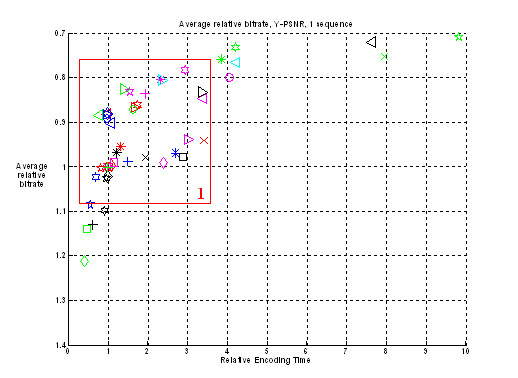
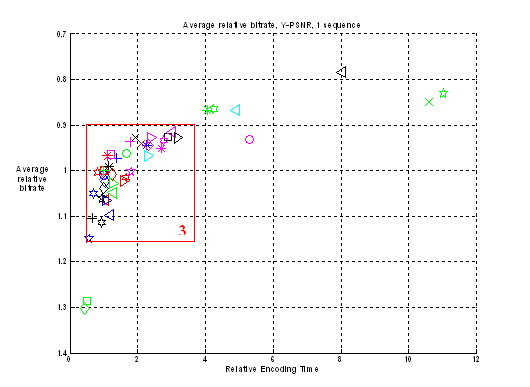
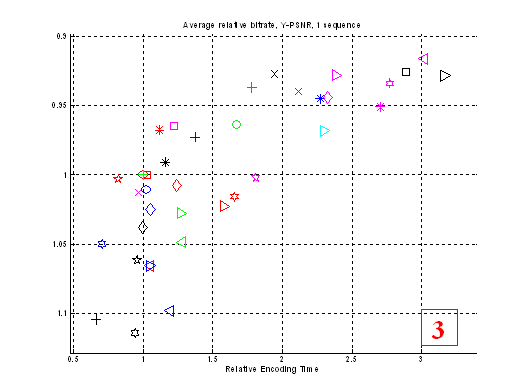
In the following charts there are results
of presets measurements for test sequences. On horizontal axis there is
relative encoding time ‑ how long a given preset works relative to the
default preset. And on vertical axis there is relative bitrate. This value
depicts encoded sequence size for the same quality comparing to the default
preset. The default preset has value (1, 1).
A more detailed description can be found
in section “Averaging Methods and Explanation of Charts”.
Charts of Quality/Speed tradeoff are
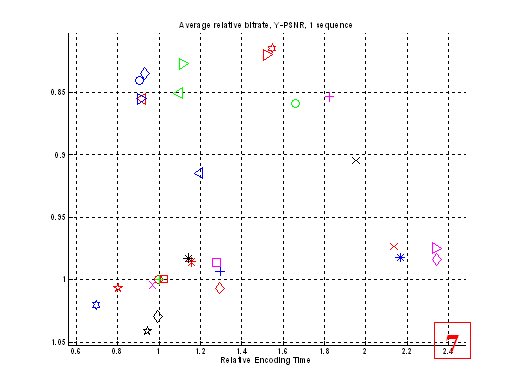
shown for each sequence on Figure 5 - Figure 18 below. We have made several charts showing certain zoomed regions in order to simplify presets comparison.
|
|
|
Figure 5. Speed/Quality tradeoff of all presets on “Foreman” sequence
|
|
|
|
Figure 9.
Speed/Quality tradeoff of all presets on “BBC” sequence
|
|
|
|
Figure 10.
Speed/Quality tradeoff of all presets on “BBC” sequence, zoomed region
|
|
|
|
Figure 18. Speed/Quality tradeoff of all presets on “Mobile” sequence, zoomed region
|
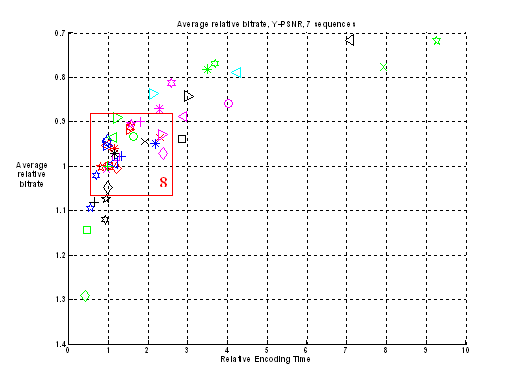
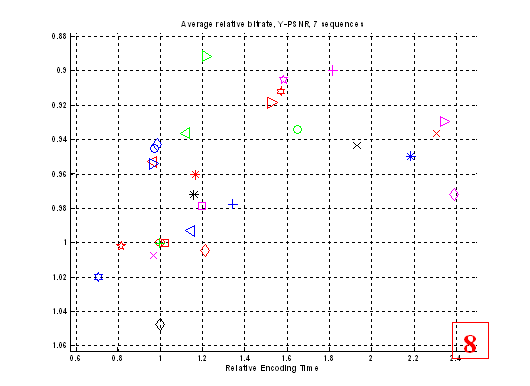
Figure 19 and Figure 20 show averaged results for all test set. Geometric mean was used for bitrate and arithmetic mean for speed calculation.
Of course, in some cases charts for
separate sequences differ rather strongly and it is not quite correct to
average out all charts. But averaged data help to understand the situation for
the entire test set and to analyze results easier.
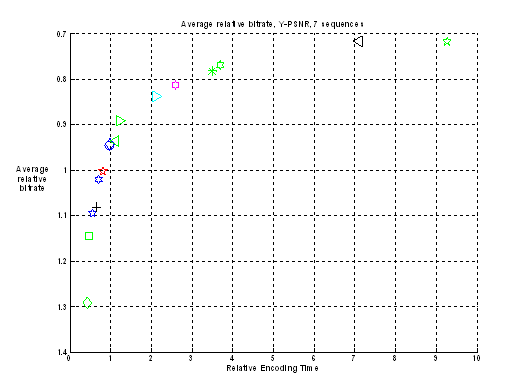
Figure 21 shows quality/speed for only sub-optimal presets for the entire test set. All others preset were deleted.
|
|
|
Figure 19. Speed/Quality tradeoff of all presets for
the entire test set
|
|
|
|
Figure 20.
Speed/Quality tradeoff of all presets for the entire test set, zoomed region
|
|
|
|
Figure 21. Speed/Quality tradeoff of only sub-optimal presets for the entire test set
|
Here we analyze “simple” presets ‑
presets that differ from the default one by turning on one (in most cases)
codec’s parameter.
|
|
|
Preset
|
Comments
|
|
2.
|
|
-t
1
|
Trellis 1 makes small quality
improvement (4%) with moderate speed decrease (16%). On average there are a
number of presets which are better than trellis optimization (variations of “‑‑direct”
presets,  , ,  ). On the other hand, this preset is
not covered by any other preset on sequences “Matrix”, “Simpsons”, “Battle” and “BBC”. ). On the other hand, this preset is
not covered by any other preset on sequences “Matrix”, “Simpsons”, “Battle” and “BBC”.
|
|
3.
|
|
-t
2
|
Trellis 2 further improves quality
(~6.5% comparing to default preset), but works much longer (2.3 times). Many
other presets cover this preset both by quality and speed (for all
sequences). Probably, usage of this preset is not optimal from the
speed/quality tradeoff point of view.
|
|
4.
|
|
‑‑nr
5
|
Noise reduction does not give
significant quality change for our test set. Encoding speed increased only by
2%. Usage of this preset does not lead to any significant changes of quality
by objective metrics.
|
|
5.
|
|
‑‑no-fast-pskip
|
On average, this preset is worse
than the default one (+21% of encoding time with approximately the same quality).
This preset gives maximum quality improvements on “Matrix” sequence. Usage of
this preset for encoding is rather dubious.
|
|
6.
|
|
‑‑subme
1
|
“‑‑subme” parameter is
a useful tool to vary quality/speed tradeoff.
“‑‑subme 1” is one of
the fastest presets in our comparison. It requires only 45% of default preset
time for encoding and 9% of additional bitrate for the same quality. This
preset is sub-optimal for all sequences except “Mobile” (complex  preset is better there) preset is better there)
“‑‑subme 3” decreases
encoding speed by 30% and saves 2% of bitrate. This preset is sub-optimal for
all sequences except “Mobile” too.
“‑‑subme 6” and “‑‑subme
7” options are not sub-optimal, they are covered by many others presets.
Probably, it is reasonable to use
values “1” or “3” to increase encoding speed. Values “6” and “7” don’t lead
to optimal encoding.
|
|
7.
|
|
‑‑subme
3
|
|
8.
|
|
‑‑subme
6
|
|
9.
|
|
‑‑subme
7
|
|
10.
|
|
‑‑me
dia
|
DIA algorithm works a little
faster (only app. 3.5%) than the default one and gives approximately the same
quality. In fact, this ME method doesn’t differ much comparing to HEX
(default) by speed/quality tradeoff criterion.
UMH works 20% slower and saves
only 2% of bitrate. It is not sub-optimal for all sequences except “Simpsons”
and “BBC”.
Speed/quality tradeoff for ME ESA
is not very good. Lots of other presets can produce smaller sequences with
the same quality and do it faster.
|
|
11.
|
|
‑‑me
umh
|
|
12.
|
|
‑‑me
esa
|
|
13.
|
|
‑‑subme
6 ‑‑b-rdo ‑b 3
|
Works 1.5 times longer than the
default preset, saves 8% of bitrate. This preset is not sub-optimal for all
sequences. The reason of that, probably, that not all possibilities of
B-frames usage are exploited in this preset.
|
|
14.
|
|
‑‑no-chroma-me
|
This preset works 19% faster than
the default one. Differences in quality for luma (Y) plane are not significant,
in U and V planes it is 3.5% worse than the default preset.
|
|
15.
|
|
‑‑weightb
-b 3
|
This preset is better than the
default one (5% faster, saves 4% of bitrate) on average. But results are
varying strongly from sequence to sequence. Best results are attained on
“Foreman”, “Susi” and “Mobile” sequences, on “BBC” sequence this preset is worse than
default, on other sequences differences are not significant.
Results of this preset are very
close to “‑‑direct” options variations.
|
|
16.
|
|
-b
3 ‑‑b-bias 5 ‑‑b‑pyramid ‑‑weightb ‑‑b-rdo
‑‑subme 6 ‑‑bime
|
On all sequences it works very
similar to  preset (little better and slower). preset (little better and slower).
|
|
17.
|
|
‑‑direct
none
|
On average all values
except “none” works better (~5% of bitrate) and with the same speed as the
default one. But results strongly depend on a sequence.
On “Foreman”, “Susi”
and “Mobile”, these “spatial”, “temporal” and “auto” presets show better
quality (10-15% of bitrate saving) while being not slower than the default
preset. On “Battle”, “Simpsons” and
“Matrix” sequences differences are not significant. On “BBC” sequence all
presets are worse than the default one, but the differences varies strongly
(see Figure 9, Figure 10).
“none” value always
leads to both quality and speed decrease. Probably, this option is not
optimal.
|
|
18.
|
|
‑‑direct
spatial
|
|
19.
|
|
‑‑direct
temporal
|
|
20.
|
|
‑‑direct
auto
|
|
21.
|
|
‑‑analyse=none
|
This preset works rather fast on
average (64% of default preset encoding time), but increases bitrate 8% for
the same quality. Preset is sub-optimal at most sequences.
|
|
22.
|
|
‑‑analyse=all
-8
|
Slower (6%) and a little better
(3%) than the default preset on average. This preset is sub-optimal on
“Matrix”, “Simpsons” and “Battle” sequences. On other sequences this preset is covered by
“‑‑direct” option presets.
|
|
23.
|
|
‑‑pass
1
‑‑pass 2
|
2-pass encoding is really almost 2
times faster than the 1-pass default preset. It saves 7% of bitrate for the
same quality. This preset is sub-optimal on “BBC” and “Matrix” sequences
only.
2-pass encoding is not always
optimal in terms of speed/quality tradeoff.
|
|
24.
|
|
‑‑pass
1
‑‑pass 3
‑‑pass 2
|
Encoding time linearly grows with
increase of number of passes. But quality increasing is not significant
comparing to 2-pass encoding (+0.6% of bitrate). This preset is not
sub-optimal for all sequence.
|
|
25.
|
|
‑‑ratetol
0.1
|
Increasing restrictions on rate
variation, we decrease resulting quality of video sequence (+5% of bitrate on
average). Speed of this preset is very near to the default one.
|
|
26.
|
|
‑‑nf
|
Turning off loop filter results in
quality degradation (7% of bitrate for the same quality) and small speed
increase (5%). Preset is always not sub-optimal. Probably, user should have
serious reasons to turn off deblocking filter.
|
|
27.
|
|
‑‑no-cabac
|
It is interesting to note that
using CALVC instead of CABAC increases speed by 7% only. But quality degrades
significantly (12% on average). Probably, implementation of CALVC in x264 is
not very good now.
|
|
28.
|
|
‑‑ref
10
|
Using 10 frames instead of 1 in
the default preset increases encoding time to 65% and saves 7% on average.
But this preset is not sub-optimal for all sequences except “Simpsons” and
“BBC”. For example, B-usage in most cases is better than 10 reference frames.
|
|
29.
|
|
‑‑scenecut
10
|
The difference between this preset
and the default one is very small for all sequences.
|
Summary:
·
Best options by speed/quality tradeoff
criterion:
o
“‑‑direct” options (all except
”none” value)
o
“-subme 3” or “-subme 1”
o
“‑‑weightb” (use with B frames)
·
Trellis usage really increases quality of
encoded sequence, but this feature requires considerably bigger encoding time
·
“-subme 6” or “-subme 7” are implementations of
interesting RC ideas, but they are not optimal as standalone options
·
“‑‑no-fast-pskip” is a rather
strange option. It increases encoding time, but does not lead to quality
improvement on average
·
ME algorithm changes allow to alter
speed/quality tradeoff, but they are not optimal as standalone options.
Differences between DIA and HEX are not significant, ESA works too long.
·
“‑‑analyse=none” option is a rather
good option to speed up encoding process.
·
“‑‑direct” option is a very powerful
option, but it does not always work. Sometimes it can even decrease encoding
quality
There are a number of rather complex
presets differing a lot from default. That is why it is reasonable to describe
them separately.
|
|
|
Preset
|
Comments
|
|
30.
|
|
‑‑me=umh
‑‑merange=32
‑‑subme=6 ‑‑ref=16
‑‑analyse=all
‑‑direct=spatial
‑‑pbratio=1.5 ‑‑bframes=3
‑‑weightb ‑‑pass=1
‑‑me=umh
‑‑merange=32
‑‑subme=6 ‑‑ref=16
‑‑analyse=all
‑‑direct=spatial
‑‑pbratio=1.5 ‑‑bframes=3
‑‑weightb ‑‑pass=2
|
This preset is not sub-optimal on
average. It works 8 times longer than default preset and saves 22% of
bitrate, but preset 46( ) is faster and produce better
quality for most sequences. ) is faster and produce better
quality for most sequences.
|
|
31.
|
|
‑‑me=dia
‑‑merange=16 ‑‑subme=1 ‑‑analyse=none
‑‑direct=spatial ‑‑pbratio=1.5
‑‑bframes=1
|
This is a high speed preset. It
works two times faster than default one, and requires 14% more bitrate for
the same quality. This preset is sub-optimal for most sequences.
|
|
32.
|
|
‑‑no-b-adapt
‑‑no-cabac
‑‑analyse=p8x8 ‑‑me dia ‑‑subme=1
‑‑no-chroma-me
|
This preset is the fastest in our
comparison (42.6% of default preset speed). Unfortunately, it has problems
with quality – it requites 29% more bitrate for the same quality.
|
|
33.
|
|
-b
4 ‑‑b-pyramid -r 16 ‑‑analyse=all
‑‑direct auto ‑‑weightb ‑‑me umh
‑‑subme=7 ‑‑b-rdo ‑‑bime -8
‑‑pass=1
-b
4 ‑‑b-pyramid -r 16 ‑‑analyse=all
‑‑direct auto ‑‑weightb ‑‑me umh
‑‑subme=7 ‑‑b-rdo ‑‑bime -8
‑‑pass=2
|
The slowest preset in our
comparison. Increased number of reference frames, comparing to preset, does not
improve quality (very small improvement on “Foreman” and “Mobile” sequences with
relatively slow motion). This preset works approximately 9.3 times slower
than the default one, saving 28% of bitrate.
|
|
34.
|
|
‑‑me=umh
‑‑merange=32
‑‑subme=6 ‑‑ref=16 ‑‑analyse=all
‑‑direct=spatial ‑‑pbratio=1.5
‑‑bframes=3 ‑‑weightb
|
This preset is not effective for
most sequences in our test.
|
|
35.
|
|
‑‑me=umh ‑‑merange=16
‑‑subme=6 ‑‑ref=8 ‑‑analyse=all
‑‑direct=spatial ‑‑pbratio=1.5
‑‑bframes=3
|
This preset works with
approximately the same quality as  , but 1.5-2 times faster. , but 1.5-2 times faster.
So decreasing “merange”
from 32 to 16 and ref from 16 to 8 does not decrease quality notably.
|
|
36.
|
|
‑‑me=umh
‑‑merange=16 ‑‑ref=4
‑‑analyse=all ‑‑direct=spatial
‑‑pbratio=1.5 ‑‑bframes=3 ‑‑weightb
|
Measurement results of these
presets greatly depend on sequence type. On some sequences one of these
presets is optimal and on the other sequences they are covered by many other
presets.
|
|
37.
|
|
-b
3 ‑‑b-bias 5 ‑‑b-pyramid ‑‑weightb
‑‑b-rdo ‑‑bime ‑‑subme 7 -8 ‑‑ref
4
|
|
38.
|
|
‑‑subme
7 ‑‑ref 10
|
There are reasons to think that ‑‑subme
7 is not the optimal choice in almost all situations.
|
|
39.
|
|
‑‑subme
7 -t 1
|
|
40.
|
|
‑‑ref
10 -t 1
|
|
41.
|
|
-b 3 ‑‑b-bias 5 ‑‑b-pyramid
‑‑weightb
‑‑b-rdo ‑‑bime -8 -t 1
|
This preset works slower than 1.5
times, but gives better quality (~20%)
|
|
42.
|
|
‑‑subme
6 -b 5 ‑‑b-bias 5
‑‑b-pyramid
|
It is not sub-optimal on almost
every sequence (except “Foreman” and “Susi”).
On “Foreman” sequence it works
faster, than the default preset.
|
|
43.
|
|
-b
4 ‑‑b-pyramid -r 10 ‑‑analyse=all
‑‑direct auto ‑‑weightb ‑‑me umh
‑‑subme=7 ‑‑b-rdo ‑‑bime -8 -t 1
|
This preset works very similar to  preset. preset.
Turning on options “‑‑analyse=all
-t 1” doesn’t improve quality on every sequence
|
|
44.
|
|
-b
4 ‑‑b-pyramid -r 10 ‑‑direct auto
‑‑weightb ‑‑me umh ‑‑subme=7 ‑‑b-rdo
‑‑bime -8
|
This preset is rather balanced on
our test suite. Working 3.5 times slower than the default one, it saves 22%
of bitrate for the same quality.
|
|
45.
|
|
-b
3 ‑‑b-bias 5 ‑‑b-pyramid ‑‑weightb
‑‑b-rdo ‑‑subme=6 ‑‑bime ‑‑pass
1
-b
3 ‑‑b-bias 5 ‑‑b-pyramid ‑‑weightb
‑‑b-rdo ‑‑subme=6 ‑‑bime ‑‑pass
2
|
This preset is not sub-optimal on
all sequences, except “Mobile”. But it works pretty fast for its quality (3 times
longer than the default one).
|
|
46.
|
|
-b
4 ‑‑b-pyramid -r 8 ‑‑analyse=all
‑‑direct auto ‑‑weightb ‑‑me umh
‑‑subme 7 ‑‑b-rdo ‑‑bime -8
‑‑pass 1
-b
4 ‑‑b-pyramid -r 8 ‑‑analyse=all
‑‑direct auto ‑‑weightb ‑‑me umh ‑‑subme
7
‑‑b-rdo ‑‑bime -8 ‑‑pass 2
|
Probably, it is the best preset
for high quality encoding among all tested. It gives 20-40% bitrate saving
(28% on average) increasing time of encoding approximately 7 times.
|
|
47.
|
|
-b
3 ‑‑b-bias 5 ‑‑b-pyramid ‑‑weightb
‑‑subme 7 -8 -ref 4
|
It is sub-optimal on many
sequences (“Foreman”, “Susi”, “Battle”, “Simpsons” and “Matrix”). On “BBC” and “Mobile” it is covered by only
one preset (by  on “BBC” and by on “BBC” and by  on “Mobile”) on “Mobile”)
|
|
48.
|
|
-b
4 ‑‑b-pyramid -r 8 ‑‑analyse all
‑‑direct auto ‑‑weightb ‑‑me umh -8
‑‑pass 1
-b
4 ‑‑b-pyramid -r 8 ‑‑analyse all
‑‑direct auto ‑‑weightb ‑‑me umh -8
‑‑pass 2
|
This preset is less effective than
 on
all sequences but “Mobile”. on
all sequences but “Mobile”.
|
Summary:
·
Complex presets of x264 allow to achieve high
quality or high speed
·
Combinations of different options comparing to a
single codec option modification (as in simple presets) further improve
speed/quality tradeoff
·
Usage of options dealing with B-frames
optimization is a good way to achieve the perfect speed/quality tradeoff in the
area of moderate encoding complexity
·
Acquired results show that settings of x264
really can control codec’s quality/speed tradeoff with great flexibility. Speed
of the codec can be varied more than 20 times, producing streams with sizes
differing up to 50% from each other for the same quality.
·
The default preset is not sub-optimal for our
test set, but its speed/quality tradeoff is good enough.
·
Not all implemented features of x264 lead to
speed/quality tradeoff improvements. One of the possible reasons of that fact
can be inefficient implementation of certain features.
·
It can be suggested that the following presets
should be additionally tuned to improve speed/quality tradeoff:
o
‑‑subme 6 and 7
o
trellis based RDO optimization (“-t” option)
o
‑‑direct options works great but not
for all sequences; probably, this feature should be turned on adaptively
o
multi-pass encoding and ESA ME (they work too
slow)
o
CAVLC encoding
·
We can propose the following settings to use as
different x264 presets for various applications and purposes:
|
Preset name
|
Settings
|
|
Fastest
|
‑‑me=dia
‑‑merange=16 ‑‑subme=1 ‑‑analyse=none ‑‑direct=spatial
‑‑pbratio=1.5 ‑‑bframes=1
|
|
Fast
|
‑‑subme=1
|
|
Tradeoff
|
‑‑subme=3
|
|
Good
|
-b 3 ‑‑b-bias
5 ‑‑b-pyramid ‑‑weightb ‑‑b-rdo ‑‑bime
-8 -t 1
|
|
Best
|
-b 4 ‑‑b-pyramid
-r 10 ‑‑analyse=all ‑‑direct auto ‑‑weightb
‑‑me umh ‑‑subme=7 ‑‑b-rdo ‑‑bime
-8 -t 1
|
|
Extra Quality
|
-b 4 ‑‑b-pyramid
-r 8 ‑‑analyse=all‑‑direct auto ‑‑weightb
‑‑me umh ‑‑subme 7 ‑‑b-rdo ‑‑bime
-8 ‑‑pass 1
-b 4 ‑‑b-pyramid
-r 8 ‑‑analyse=all ‑‑direct auto ‑‑weightb
‑‑me umh ‑‑subme 7 ‑‑b-rdo ‑‑bime
-8 ‑‑pass 2
|
The table
below shows relative speed and relative bitrate for the same quality for
proposed presets comparing to the default one.
|
Preset Name
|
Speed, %
|
Average bitrate, %
|
|
Fastest
|
47
|
114
|
|
Fast
|
56
|
109
|
|
Tradeoff
|
70
|
102
|
|
Good
|
121
|
89
|
|
Best
|
369
|
77
|
|
Extra Quality
|
710
|
72
|
|
Sequence
title
|
Foreman
|
|
Resolution
|
352x288
|
|
Number
of frames
|
300
|
|
Color
space
|
YV12
|
|
Frames
per second
|
30
|
|
Source
|
Uncompressed
(standard sequence), progressive
|
This is one of the most famous sequences.
It represents a face with very rich mimic. Motion is not very intensive here,
but on the other hand it is disordered, not straightforward. Intricate
character of motion may create problems for the motion compensation process. In
addition camera is shaking, that makes the image unsteady. In the end of the
sequence camera suddenly turns to the building site and there follows an almost
motionless scene. So this sequence also shows codec’s behavior on a static
scene after intensive motion.
|
Sequence
title
|
Susi
|
|
Resolution
|
704x576
|
|
Number
of frames
|
374
|
|
Color
space
|
YV12
|
|
Frames
per second
|
25
|
|
Source
|
MPEG-2
(40Mbit), Smart Deinterlace
|
This sequence is characterized by
high-level noise and slow motion. In its first part the scene is almost static
(the girl only blinks), then there is some motion (she abruptly moves her head)
and then the scene becomes almost static again. Noise is suppressed on every
second frame due to B-frames usage in a MPEG-2 codec.
|
Sequence
title
|
BBC
|
|
Resolution
|
704x576
|
|
Number
of frames
|
374
|
|
Color
space
|
YV12
|
|
Frames
per second
|
25
|
|
Source
|
Uncompressed
(standard sequence), Smart Deinterlace
|
This sequence is characterized by
pronounced rotary motion which is quite uncommon for typical video and,
therefore, can be used as a crash-test for motion estimation and other
algorithms. The sequence contains a rotating striped drum with different
pictures and photos on it. Quality of the compressed sequence can be evaluated
by observing details on these images.
Battle
|
Sequence
title
|
Battle
|
|
Resolution
|
704x288
|
|
Number
of frames
|
1599
|
|
Color
space
|
YV12
|
|
Frames
per second
|
24
|
|
Source
|
MPEG-2
(DVD), FlaskMPEG deinterlace
|
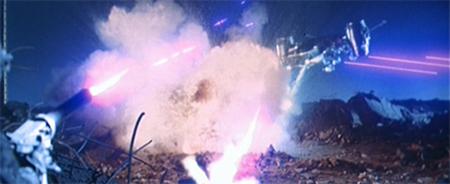
Figure 27. Frame 839 of “Battle”
This sequence is a fragment of the
“Terminator-2” movie and
represents its very beginning. In terms of compression this sequence is the
most difficult one among all other sequences that took part in the comparison.
That is because of three main reasons: constant brightness changes (explosions
and laser flashes, see the picture above), relatively very quick motion and
frequent changes of the scene that make codecs often compress frames as
I-frames.
|
Sequence
title
|
Simpsons
|
|
Resolution
|
720x480
|
|
Number
of frames
|
365
|
|
Color
space
|
YV12
|
|
Frames
per second
|
24
|
|
Source
|
MPEG-2 (DVD), progressive
|

Figure 28. Frame 50 of “Simpsons”
This sequence is a fragment of “Simpsons”
cartoon film. This is a classic representative of cartoon films: sketchy
movement, great number of monochrome regions with abrupt edges between them.
Previously this sequence was compressed in MPEG-2 with rather low bitrate giving
notable compression artifacts.
|
Sequence
title
|
Matrix
|
|
Resolution
|
720x416
|
|
Number
of frames
|
239
|
|
Color
space
|
YV12
|
|
Frames
per second
|
25
|
|
Source
|
MPEG-2
(DVD), Smart Deinterlace
|
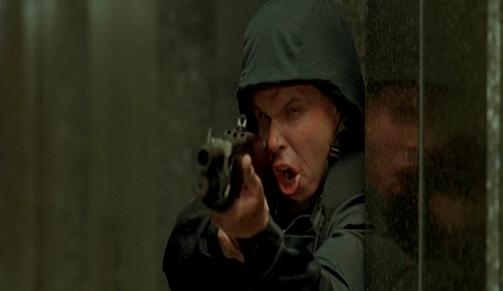
Figure 29. Frame 226 of “Matrix”
This sequence is a fragment of ”Matrix”
movie. Relatively simple movement and quite dim colors allows codecs to treat
this sequence in rather simple way.
Mobile
|
Sequence
title
|
mobile
|
|
Resolution
|
704x576
|
|
Number
of frames
|
372
|
|
Color
space
|
YV12
|
|
Frames
per second
|
25
|
|
Source
|
Uncompressed
(standard sequence), Smart Deinterlace
|
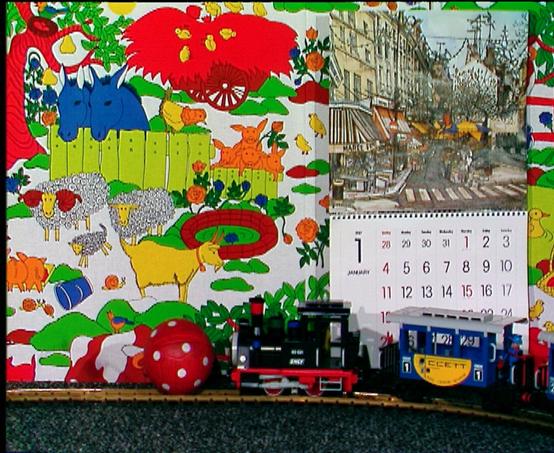
Figure 30. Frame 100 of “Mobile”
This sequence contains relatively slow, but
complicated motion. There are parts of the picture that move in opposite
directions, and this situation may be rather complex for motion estimation
algorithms. Also there are parts of the picture that have the same brightness,
but different color components.
Figure
1. Source RD data. 5
Figure
2. Axis rotation and interval choosing. 5
Figure
3. Ratio of areas. 5
Figure
4. Speed (Encoding Time)/Quality chart example. 6
Figure
5. Speed/Quality tradeoff of all presets on “Foreman” sequence. 13
Figure
6. Speed/Quality tradeoff of all presets on “Foreman” sequence, zoomed region 13
Figure
7. Speed/Quality tradeoff of all presets on “Susi” sequence. 14
Figure
8. Speed/Quality tradeoff of all presets on “Susi” sequence, zoomed region 14
Figure
9. Speed/Quality tradeoff of all presets on “BBC” sequence. 15
Figure
10. Speed/Quality tradeoff of all presets on “BBC” sequence, zoomed region 15
Figure
11. Speed/Quality tradeoff of all presets on “Battle” sequence. 16
Figure
12. Speed/Quality tradeoff of all presets on “Battle” sequence, zoomed region 16
Figure
13. Speed/Quality tradeoff of all presets on “Simpsons” sequence. 17
Figure
14. Speed/Quality tradeoff of all presets on “Simpsons” sequence, zoomed region 17
Figure
15. Speed/Quality tradeoff of all presets on “Matrix” sequence. 18
Figure
16. Speed/Quality tradeoff of all presets on “Matrix” sequence, zoomed region 18
Figure
17. Speed/Quality tradeoff of all presets on “Mobile” sequence. 19
Figure
18. Speed/Quality tradeoff of all presets on “Mobile” sequence, zoomed region 19
Figure
19. Speed/Quality tradeoff of all presets for the entire test set 20
Figure
20. Speed/Quality tradeoff of all presets for the entire test set, zoomed
region 21
Figure
21. Speed/Quality tradeoff of only sub-optimal presets for the entire test set 21
Figure
22. Frame 77 of “Foreman” 31
Figure
23. Frame 258 of ‘Foreman” 31
Figure
24. Frame 193 of “Susi” 32
Figure
25. Frame 185 of “BBC” 33
Figure
26. Frame 258 of “BBC” 33
Figure
27. Frame 839 of “Battle” 34
Figure
28. Frame 50 of “Simpsons” 35
Figure
29. Frame 226 of “Matrix” 36
Figure
30. Frame 100 of “Mobile” 37


